Showing posts with label Developing Java on Windows 8. Show all posts

Saturday, 24 January 2015

How to Run Java Programs on Windows 8

public class HelloWorld { 
   public static void main(String[] args) { 
      System.out.println("Hello, World");
   }
}

The above code is for the most basic Java program you can write. All it does is prints out Hello World to the screen.

In order to run the above program, you need to copy the code above and paste it to a file called HelloWorld.java

It is important that you name the file the exact name of your class otherwise you will get an error. Once you do that, save the file in a location you can easily access. I am saving it to my Documents directory.

Follow the following steps to run a Java program on your machine.

  1. Open your command window. This can be done by using Window + R on your machine.
  2. My window take me to my user directory. Use the cd Documents command to get to your documents directory.
  3. Once you are in the Documents directory, run the javac HelloWorld.java command.
  4. If nothing happens, your program is error free. I expect it to be since you are copying my code.
  5. Next run the command java HelloWorld you will see Hello, World on your command window as shown below
There you have it. You can now run Java programs on you machine. Why is this important? It is important because it means that you can use you machine to develop Java applications.

Friday, 16 January 2015

How to Install Java on Windows 8


Installing Java on a Windows 8 machine is something any serious developer has to do at one point in his career. The reason for this is simple. The Android operating system is based on Java  and sooner or later, you are going to have to interact with it.

Installing Java on your machine is different from installing the Java Development Kit which allows you to develop Java programs on your machine.

Follow the following steps to install Java on your machine

  1. Download Java from the Oracle website by clicking on the Free Java Download Button.
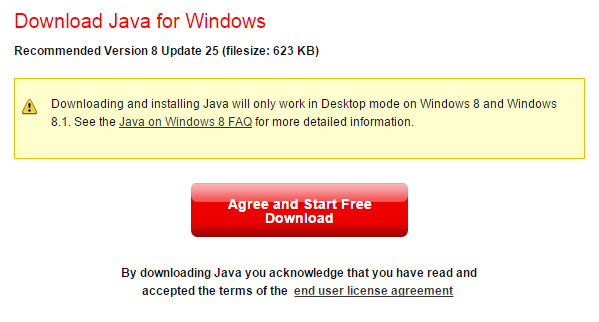
  2. You will be directed to the Java Download Page. Click the Agree and Start Free Download button
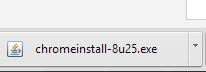
  3. It will download the installer to the browser you are using click on that installer
  4. Double click on the installer you downloaded. It will bring up a prompt. Press the install button to start the installation
  5. The installation would run in the background. When it is done, A new window will pop up. It will look like this.
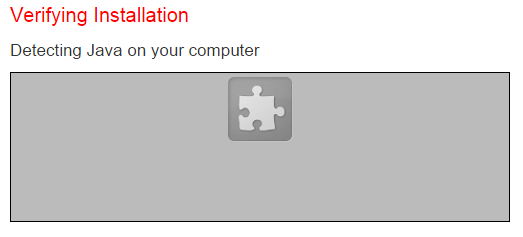
  6. You will get a prompt to install Java in your browser.
  7. Click on it.
  8. Reload your page to activate it
  9. Open a command prompt window and type in java. You will get a response like this
  10. Congratulations. You have successfully installed Java.