Showing posts with label Class path in Java. Show all posts

Saturday, 24 January 2015

How to Run Java Programs on Windows 8

public class HelloWorld { 
   public static void main(String[] args) { 
      System.out.println("Hello, World");
   }
}

The above code is for the most basic Java program you can write. All it does is prints out Hello World to the screen.

In order to run the above program, you need to copy the code above and paste it to a file called HelloWorld.java

It is important that you name the file the exact name of your class otherwise you will get an error. Once you do that, save the file in a location you can easily access. I am saving it to my Documents directory.

Follow the following steps to run a Java program on your machine.

  1. Open your command window. This can be done by using Window + R on your machine.
  2. My window take me to my user directory. Use the cd Documents command to get to your documents directory.
  3. Once you are in the Documents directory, run the javac HelloWorld.java command.
  4. If nothing happens, your program is error free. I expect it to be since you are copying my code.
  5. Next run the command java HelloWorld you will see Hello, World on your command window as shown below
There you have it. You can now run Java programs on you machine. Why is this important? It is important because it means that you can use you machine to develop Java applications.

Friday, 23 January 2015

How to Add Java to Your Class Path


In the last tutorial. We installed the Java Development Kit on our machine. However, in this tutorial, we are going to modify our classpath.

If you look at the above image, you realize that the javac command doesn't work on command prompt. javac is the command use to instruct the computer to compile a Java program.

In order to set your class path in Java, you first need to right click on you computer icon on your desktop and go to Properties.

Select Advanced system settings. It will bring up a System Properties dialog box as shown below: 


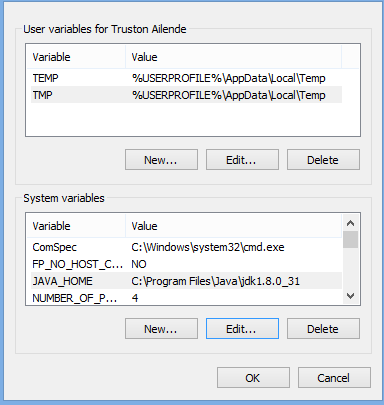
Click on the Environment Variables button. It will bring up another pop up like this:


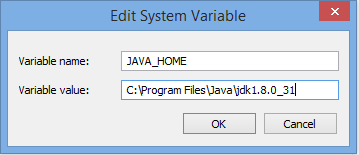
Create a new system variable called JAVA_HOME by clicking on the New button in the System variables section.
This is why I insisted on setting the installation directory to Java in the last tutorial. Click on OK. Now JAVA_HOME is now a system variable.

Scroll down the System variable area and find the path variable.

Click on the Edit button.
Add this to the end without editing anything -> ;%JAVA_HOME%\bin

Click the OK buttons on all the open dialogs.

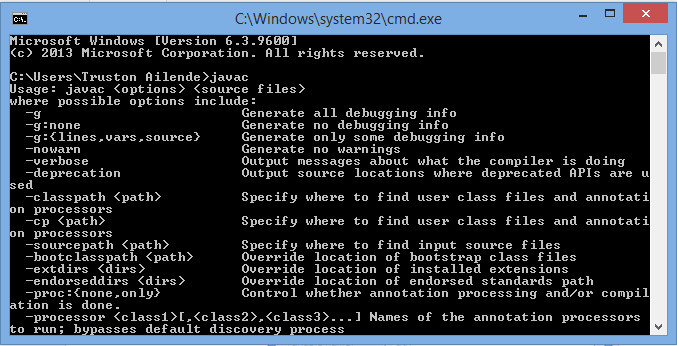
To test if you are successful, run the javac command again. It should give you the following output:


Congratulations. You can now run Java programs on your machine.