Showing posts with label Series. Show all posts

Wednesday, 6 September 2017

Epa


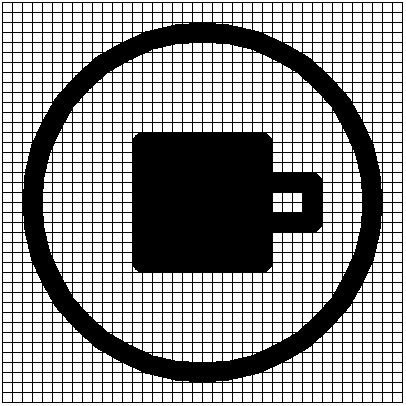
Epa is the symbol of law and justice, slavery and captivity.

We will use a grid of 5 pixels to trace out the image. The image of this is shown below:


This symbol consist only of straight lines. It consists of an intersecting symmetric shape. Once you draw one shape, you can use that to draw the other shape. We will start with the shape on the left hand side.

The plan to draw this shape is as follows:

  1. Lift the turtle
  2. Move the turtle to the position of the center of the left most part of the shape
  3. Set the size of the pen to 4 units of the square
  4. Find the distance to the upper position
  5. Find the angle to the upper position
  6. Place the pen down
  7. Draw a line to the upper position at the angle of the position
  8. Find the distance to the outer final point
  9. Find the angle to the outer final point
  10. Draw a line to the outer final point from the upper position
  11. Lift up the pen
  12. Move it back to the upper position
  13. Find the distance to the inner final point
  14. Find the angle to the inner final point
  15. Place the pen down
  16. Draw a line to the inner final point from the upper position
  17. Lift up the pen
  18. Move the pen back to the starting position in step 2
  19. Find the distance to the lower position
  20. Find the angle to the lower position
  21. Place the pen down
  22. Draw a line to the lower position at the angle of the position
  23. Find the distance to the outer final point
  24. Find the angle to the outer final point
  25. Draw a line to the outer final point from the lower position
  26. Lift up the pen
  27. Move it back to the lower position
  28. Find the distance to the inner final point
  29. Find the angle to the inner final point
  30. Place the pen down
  31. Draw a line to the inner final point from the lower position
  32. Repeat the steps for the shape on the right hand side
Using Turtle Graphics

We will use the grid from the last section. Rename template.py to epa.py. The size of each square on our grid is 10 pixels. We shall use this as our multiplication factor.

From step 1 of our algorithm, we need to lift the pen. The code to do this is shown below:

turtle.penup()

To move the turtle to the position of the center of the left most part of the shape, we need to get its location. This location is at the point where (-170, 0). When we multiply by 10, we know that we have to move the turtle to (-170, 0). The code to do this is shown below:

turtle.setposition(-170, 0)

We set the pensize of the turtle to 4 units. Since our multiplication factor is 10, we will use 40. The code to do this is shown below:

turtle.pensize(40)

The upper position is situated at (-8, 10). Using our multiplication factor, this will be (-80, 100). To find the distance between the two points, we will use a function called coordinateDistance. The function definition is given below:

def coordinateDistance(x1, y1, x2, y2):
    dx = x1 - x2
    dy = y1 - y2
    D = math.sqrt((dx * dx) + (dy * dy))
    return D

After we define this function in our code, we do the following:

upperLength = coordinateDistance(-170, 0, -80, 100)

Now that we have the length of the distance between the two points, we only need to find the angle. Using the formula to find the angle between two points, our code will now be:

myradians = math.atan2(100 - 0, -80 - (-170))
upperAngle = math.degrees(myradians)
turtle.setheading(upperAngle)

Now we can draw the line to that point. Before we do this, we need to place the pen down. The code to do this is shown below:

turtle.pendown()

Now that the heading is set and our pen is down, all we need to do is to draw the line. The code to do this is given below:

turtle.forward(upperLength)

The generated image is now as shown below:
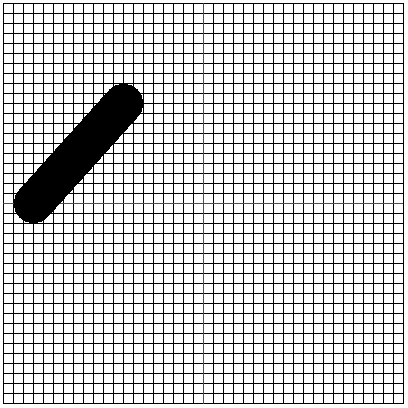

From this point, we can draw a line to the final point. The final point however comes with some complications. It diverges into two points. The trick then would be to use two positions taking them as the outer and inner points.

We will do for the outer point first. Its coordinates are (8, 0). Using the multiplication factor, this will be (80, 0). Based on step 8 we find the distance to the outer final point the code to do this is shown below:

outerUpperLength = coordinateDistance(-80, 100, 80, 0)

Next we need to find the angle to the outer final point. The code to do this is shown below:

myradians = math.atan2(0 - 100, 80 - (-80))
outerUpperAngle = math.degrees(myradians)
turtle.setheading(outerUpperAngle)

Next we draw a line to the outer final point from the upper position. The code to do this is shown below:

turtle.forward(outerUpperLength)

The generated image is now shown below:


We lift up the pen to go back to the upper position. The code to lift the pen is given below:

turtle.penup()

Next we move the pen back to the upper position. The code to do this is shown below:

turtle.setposition(-80, 100)

The coordinates of the inner final point are (5, 0) multiplication by 10 gives us (50, 0). The code to find the distance to this point is:

innerUpperLength = coordinateDistance(-80, 100, 50, 0)

To find the angle to this point, we use the code shown below:

myradians = math.atan2(0 - 100, 50 - (-80))
innerUpperAngle = math.degrees(myradians)
turtle.setheading(innerUpperAngle)

We need to place the pen down. The code to do this is shown below:

turtle.pendown()

Next we draw a line from the upper point to the inner final point. The code to do this is shown below:

turtle.forward(innerUpperLength)

The generated image is shown below:


Now we can go on to draw the lower portion of the shape. Before we can do that we need to lift up the pen so that it doesn’t draw while we are moving it. The code to do this is shown below:

turtle.penup()

Now we have to move the turtle back to its starting point. The code to do this is shown below:

turtle.setposition(-170, 0)

The location of the lower position is at (-7, -10). Multiplication by 10 gives us the point (-70, -100). The code to find the length is given below:

lowerLength = coordinateDistance(-170, 0, -70, -100)

The next task we have is to find the angle to the lower point. The code to do this is shown below:

myradians = math.atan2(100 - 0, -80 - (-170))
lowerAngle = math.degrees(myradians)
turtle.setheading(360 - lowerAngle)

Before we can draw a line, we must place the turtle down. The code to do this is shown below:

turtle.pendown()

We now draw the line from our starting point to the lower point. The code to do this is shown below:

turtle.forward(lowerLength)

This generates the image shown below:


Now we must find the distance from the lower point to the outer final point. The code to do this is:

outerLowerLength = coordinateDistance(-70, -100, 80, 0)

We must now find the angle from the lower point to the outer final point. The code to do this is:

myradians = math.atan2(0 - (-100), 80 - (-70))
outerLowerAngle = math.degrees(myradians)
turtle.setheading(outerLowerAngle)

Now we draw a line from the lower point to the final outer point. The code to do this is:

turtle.forward(outerLowerLength)

Our generated image now becomes:


Now we lift up the pen. The code to do this is:

turtle.penup()

Now we move it back to the lower position. The code to do this is shown below:

turtle.setposition(-70, -100)

Now we find the length between the lower point and the inner final point. The code to do this is:

innerLowerLength = coordinateDistance(-70, -100, 50, 0)

Now we calculate the angle between the two points and set the heading of our turtle to the angle. The code to do this is:

myradians = math.atan2(0 - (-100), 50 - (-70))
innerLowerAngle = math.degrees(myradians)
turtle.setheading(innerLowerAngle)

We now place the pen down as we are about to draw the line. The code that does this is:

turtle.pendown()

We can move the turtle forward to complete the drawing. The code to do this is shown below:

turtle.forward(innerLowerLength)

The generated image is now shown below:


With this, the left side of our image is complete. We will assume that the right side is symmetrical. So we will create it as a mirror imageof the left hand side.

The first step of the algorithm is to lift up the turtle. The code to do this is shown below:

turtle.penup()

Next we have to lift the pen to the right most part of the shape. The coordinates for this location are (170, 0). The code to move to this position is given below:

turtle.setposition(170, 0)

If you run the code at this point, you will see that it still takes the heading from when it was drawing the previous shape. We will change the heading to make it face the left side. To do this we need to make the heading the value of 180. The code to do this is shown below:

turtle.setheading(180)

Now to draw all that we need to do is to reuse the variables from drawing the other side and draw our shape.
We place the pen down. The code to do this is:

turtle.pendown()

We now set the heading of the turtle using the upperAngle value. We subtract by 180 because of the value we are compensating for.

turtle.setheading(180 - upperAngle)

Now we draw the line to that point. Our code now becomes:

turtle.forward(upperLength)

The image this will generate is now shown below:
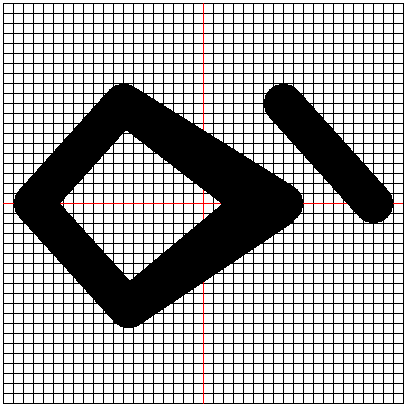

Now we draw a line to the outer final point. The code that does that is:

turtle.setheading(180 - outerUpperAngle)
turtle.forward(outerUpperLength)

The image that is generated is shown below:


Now we lift up the pen. The code to do this is:

turtle.penup()

Next we have to move back to the upper right point. Its coordinate is (80, 100). The code to do this is shown below:

turtle.setposition(80, 100)

Now we must set the heading of the turtle to the innerUpperAngle. The code to do this is:

turtle.setheading(180 - innerUpperAngle)

Then we move forward by the innerUpperLength. The code to do this is:

turtle.forward(innerUpperLength)

We lift up the pen. This will prevent it from drawing. The code to do this is:

turtle.penup()

Now we move the turtle back to the righmost point. The code to do this is:

turtle.setposition(170, 0)
turtle.setheading(180)

Now that it is back at this point, we need to draw a line to the lower point. The code that does this is:

turtle.pendown()
turtle.setheading(180 + lowerAngle)
turtle.forward(lowerLength)

The generated image is shown below:


Now we draw the line to the outer final point. The code to do this is given below:

turtle.setheading(180 - outerLowerAngle)
turtle.forward(outerLowerLength)

The generated image now becomes:


To complete this shape, we just need to draw the line from the lower hand back to the inner final point. The code that does this is given below:

turtle.penup()
turtle.setposition(70, -100)
turtle.setheading(180 - innerLowerAngle)
turtle.pendown()
turtle.forward(innerLowerLength)

The generated image is now:


Conclusion

At the end of this post, we have successfully used Python Turtle Graphics to draw the Epa symbol.

I must admit that is was tasking to do because of the way the lines diverge but at the end, we made it happen.

Feel free to experiment with the pensize of the turtle and also the coordinates of the inner and outer final points. On my end, its a wrap.

Sunday, 13 August 2017

Drawing Adinkra Symbols using Python - Dame Dame


Dame Dame means "chequered or checkered" as in the pattern on a chess or draught board. It is the symbol of intelligence, ingenuity, and strategy.

We will use a grid of 5 pixels to trace out the image. The image of this is shown below:


This symbol consists of an outer circle with an inner square, lines and rectangles. It is quite straightforward to draw it.

The plan to draw this shape is as follows:
  1. Draw the inner filled square
  2. Draw the outer circle
  3. Draw the rectangle and line for the position where the rectangle faces right
  4. Draw the rectangle and line for the other heading positions
Before we start, note that the size of the line of the shape is 2 squares. For the size we intend to draw the shape at, this means that we must change the size of our pen to match 2 squares in our grid.


Using Turtle Graphics
In the last section we used a 400 X 400 pixel grid. We will also use it here. Copy out all the code from the top until you get to the section for the command to draw the grid. You will have a grid as shown below:


From this point on, we shall use the 400 X 400 pixel grid. So copy the code that achieved the grid into a file and call it template.py.

Rename the template.py file to damedame.py and let’s get ready to code.

The first thing we are to do is to set the pensize to 20 pixels.

The code to do this is shown below:

turtle.pensize(20)

The left hand side of the square starts from (-60, 60). So we need to move the turtle there. The code to do this is shown below:

turtle.setposition(-60, 60)

Next we begin the fill. Before we do that, we need to also place the pen down. The code to do this is shown below:

turtle.pendown()
turtle.begin_fill()

Now we can start drawing the square. We start by drawing from its current position. The turtle is 120 pixels in length so we move our turtle forward by 120 pixels. The code to do this is shown below:

turtle.forward(120)

Next we turn right by 90 degrees. The code to do this is shown below:

turtle.right(90)

We do this 3 more times. A much more efficient way to do this would be to use a loop. I will leave that up to you. The rest of the code will now be:

turtle.forward(120)
turtle.right(90)
turtle.forward(120)
turtle.right(90)
turtle.forward(120)
turtle.right(90)

Now we can end the fill. The code to do this is shown below:

turtle.end_fill()

Our generated shape is now as shown below:


Next we draw the circle. The position of the circle is at 170 pixels from the center of the circle.

Our first step will be to lift up our pen. The code to do this is shown below:

turtle.penup()

Next we move it to the place on the grid where (0, 170). The code to do this is shown below:

turtle.setposition(0, -170)

Now we place the pen down. The code to do this is shown below:

turtle.pendown()

Next we draw a circle of radius 170. The code to do this is shown below:

turtle.circle(170)

Our generated image now becomes:


The next step is to draw the remaining parts. We will start with the part for where the rectangle is facing right.
Here all we have to do is repeat the steps that drew the square. Our first step would be to lift up the pen. The code to do this is shown below:

turtle.penup()

Next we set the heading of the turtle to 0 degrees. The code to do this is shown below:

turtle.setheading(0)

Now we move the turtle to the upper position to start drawing the line. This is at the end of the filled square. The coordinate of this location is (60, 20). The code to do this is shown below:

turtle.setposition(60, 20)

We now place our pen down. The code to do this is shown below:

turtle.pendown()

We move forward by 50 pixels. The code to do this is shown below:

turtle.forward(50)

Turn right and move forward by 40 pixels. The code to do this is shown below:

turtle.right(90)
turtle.forward(40)

Turn right again and move forward by 50 pixels. The code to do this is shown below:

turtle.right(90)
turtle.forward(50)

The generated shape is shown below:


Now lift up the pen. The code to do this is shown below:

turtle.penup()

Next set the heading back to 0 degrees. The code to do this is shown below:

turtle.setheading(0)

Move the pen to the position where the coordinate is (110, 0). The code to do this is shown below:

turtle.setposition(110, 0)

Place the pen down. The code to do this is:

turtle.pendown()

Move forward by 50 pixels. The code to do this is:

turtle.forward(50)

The generated image is now:


We go on to create the others. The remaining are for the Up, Left and Down directions with headings of 90, 180 and 270 degrees respectively.

Drawing the rectangle and line in all the directions is a simple algorithm which is given below:
  1. Lift up the pen
  2. Set the heading
  3. Move to the leftmost position for the rectangle
  4. Place the pen down
  5. Move forward by 50 pixels
  6. Turn the turtle by 90 degrees to the right
  7. Move forward by 40 pixels
  8. Turn the turtle by 90 degrees to the right
  9. Move forward by 50 pixels
  10. Lift the pen
  11. Set the heading
  12. Place the pen down at the position midway from its outer edge
  13. Move forward by 50 pixels

If we do this steps for all the directions, we will complete our shape. The hard part would be to figure out the position for the leftmost part for the triangle as found in step 3. Once we achieve that, the rest is easy.

For the up direction, the coordinate for the leftmost part is (-20, 60). The code to draw its own rectangle and line is:

turtle.penup()
turtle.setheading(90)
turtle.setposition(-20, 60)
turtle.pendown()
turtle.forward(50)
turtle.right(90)
turtle.forward(40)
turtle.right(90)
turtle.forward(50)

The generated image is now shown below:


At this stage, we have executed 9 steps in our algorithm. Before we complete the remaining steps, we need to find the coordinates of the position described in step 12 of our algorithm. The coordinates of this point for the up position are at (0, 110).

The remaining steps in our code will now be:

turtle.penup()
turtle.setheading(90)
turtle.setposition(0, 110)
turtle.pendown()
turtle.forward(50)

The generated image is shown below:


We repeat our drawing algorithm for the left direction. The coordinates of the leftmost part is (-60, -20). The code to draw its own rectangle and line is:

turtle.penup()
turtle.setheading(180)
turtle.setposition(-60, -20)
turtle.pendown()
turtle.forward(50)
turtle.right(90)
turtle.forward(40)
turtle.right(90)
turtle.forward(50)

The generated image is shown below:


At this stage, we have executed 9 steps in our algorithm. Before we complete the remaining steps, we need to find the coordinates of the position described in step 12 of our algorithm. The coordinates of this point for the up position are at (-110, 0).

The remaining steps in our code will now be:

turtle.penup()
turtle.setheading(180)
turtle.setposition(-110, 0)
turtle.pendown()
turtle.forward(50)

The generated image will now be:


To complete the image, we repeat our drawing algorithm for the down direction. The coordinates of this part is (20, -60). The code to draw its own rectangle and line is:

turtle.penup()
turtle.setheading(270)
turtle.setposition(20, -60)
turtle.pendown()
turtle.forward(50)
turtle.right(90)
turtle.forward(40)
turtle.right(90)
turtle.forward(50)

The image generated is now shown below:


At this stage, we have executed 9 steps in our algorithm. Before we complete the remaining steps, we need to find the coordinates of the position described in step 12 of our algorithm. The coordinates of this point for the up position are at (0, -110).

The remaining steps in our code will now be:

turtle.penup()
turtle.setheading(90)
turtle.setposition(0, -110)
turtle.pendown()
turtle.forward(50)

The generated image is now shown below:


Conclusion

At the end of this post, we have successfully used the Python turtle environment to draw the Dame Dame symbol.

It is inspiring to think of architecture based on this symbol. It would be an edifice to behold. A 3D model of this would be a great first step.

Thursday, 20 July 2017

Drawing Adinkra Symbols using Python - Akoma Ntoaso


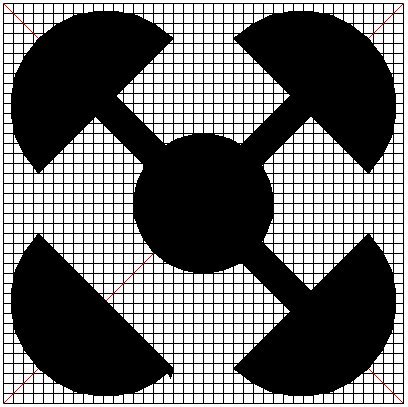
Akoma Ntoaso is the symbol for understanding and agreement. In Ghana, this is the logo of the Ghana Stock Exchange and you can see it below:


For this shape, I will use a grid of 5 pixels to trace out the image. The image of this is shown below:


The plan to draw this shap using PythonTurtle will be as follows:

  1. Draw the centre circle
  2. Draw a semi-circle in the upper left quadrant at an angle of 45 degrees to the centre circle
  3. Draw a line from the circle to the semi-circle you drew in 2 above
  4. Repeat for the remaining quadrants
  5. Stop

The above steps make up an algorithm. An algorithm is a sequence of precise instructions that solves a problem or performs a computation.

The centre circle has a radius of 7 squares. Since each square is 5 pixels, this is 35 pixels.

For the semi-circle in the upper left hand corner, when you move clockwise, its coordinates start from (-16.5, 3) to (-3, -16.5). This values are relative to the size of the pixels used for drawing your grid. In my case, I simply counted the number of lines in the grid.

Moving from the upper left hand corner to the upper right hand corner, the coordinates of semi-circle start from (3, 16.5) to (16.5, 3). We take the coordinates in a clockwise direction. If you doubt the results I have, take the image and do it yourself.

Moving on to the bottom right corner, the coordinates of the semi-circle start from (16.5, -3) to (3, -16.5).
The bottom left has the coordinates of its semi-circle start from (-3, 16.5) and go to (-16.5, 3).

From this point on, all we have to do is to multiply the value of the coordinates with the size of our grid in order to replicate this symbol.

Using Turtle Graphics


In the last section where we drew the Adinkrahene, we used a grid of 500 X 500 pixels. In this section, we shall use a grid of 400 X 400 pixels. The reason for this is to make drawing the shape easier as we have decimal values as part of our coordinates.


The steps to drawing a grid are:
  1. Draw a square of the required length
  2. Divide the square horizontally by the specified number of squares
  3. Divide the square vertically by the specified number of squares
Drawing a Square

In the Introduction of this series I drew a grid using some repetitive code. Today, that is not the case as I have refactored the code for this using a function.

The code for this are shown below:

def drawSquare(length):
turtle.reset()
turtle.penup()
turtle.setposition(-length/2.0, length/2.0)
turtle.pendown()
for i in range(0, 4):
   turtle.forward(length)
   turtle.right(90)
turtle.penup()
turtle.home()

Most of this code is easy enough to understand. All you need to do is to check out the Turtle graphics documentation. There are enough examples online on how to create a function in Python.

I will only mention the turtle.home() command which returns the turtle to the center of the screen.

Dividing the Square Horizontally

The code to do this is placed in a function. The code is shown below:

def drawHorizontalLine(length, division):
pixelSpace = length / division
half = length / 2
for j in range((-half + pixelSpace), half, pixelSpace):
   turtle.penup()
   turtle.setposition(-half, j)
   turtle.pendown()
   turtle.forward(length)
turtle.penup()
turtle.home()

The function drawHorizontalLine has two parameters: length and division. The length is the length of the side of the grid while the division is how many squares you want the grid to be divided into.

Dividing the Square Vertically

The code to do this is placed in a function. The code is shown below:

def drawVerticalLine(length, division):
pixelSpace = length / division
half = length / 2
turtle.right(90)
for k in range((-half + pixelSpace), half, pixelSpace):
   turtle.penup()
   turtle.setposition(k, half)
   turtle.pendown()
    turtle.forward(length)
turtle.penup()
turtle.home()

Be careful with the indentation of your code.

Running Your Code

Now that we are done with the functions for our grid, we only need to call the functions in our code.

The code to do this is:

drawSquare(400)
drawHorizontalLine(400, 40)
drawVerticalLine(400, 40)

Our grid is now drawn across the screen as shown below:


Now we have a grid of 400 X 400 pixels divided into 40 sections. This means that the size of each pixel is 10 pixel. We will use this value to multiply all the values we got from out image.

Laying The Framework

Before we can start drawing, we need to draw diagonal lines from one end of the grid to another.

Before we can do this, we need to look at the documentation for Turtle graphics on how we can change the pencolor of the turtle.

The function to test for this is the colormode. Run this code in your Python shell:

turtle.colormode()

If it returns the value of 1.0, run this code to change it:

turtle.colormode(255)

Now change the colour by using RGB values. For the pencolor, I want it to be red the value of red is (255, 0, 0). So run this code:

turtle.pencolor(255, 0, 0)

The next thing we need to do is to draw a line between the two points. This image from Math Open Reference explains it all.


To find the length between the two points, we will use the above formula. For the sake of simplicity, I will not create a Point class although I will state it here that the Java programming language comes with one in-built.

Before we can create a new function, some housekeeping is in order. The first thing we need to do is to get the Maths module into our script.

To do this, go to the top of the script and type:
import math

Next create the code for your function. The code is shown below:

Now move your arrow to the upper left hand corner of the grid. Since we know its dimensions, the code to do this is:
turtle.penup()
turtle.setposition(-200, 200)
Set the angle of the turtle to be 135 degrees. Next, draw a line from the upper left hand side to the bottom right hand side.

The code to do this is shown below:

turtle.setheading(315)
diagonalLength = coordinateDistance(-200, 200, 200, -200)
turtle.pendown()
turtle.forward(diagonalLength)

This code will give us the horizontal line from the upper left hand corner to the lower right hand corner as shown below:


Next we will need to move our turtle from this position to any of the other edges. Due to my preference, I will choose the lower left hand corner and draw a line from the lower left hand corner to the upper right hand corner. The code to do this is given below:

turtle.setheading(45)
diagonalLength = coordinateDistance(-200, -200, 200, 200)
turtle.pendown()
turtle.forward(diagonalLength)

This will now create the image shown below:


Next we bring the turtle back to the center of the screen using the turtle.home() command.

Change the pencolor of the turtle using this command:

turtle.pencolor(0, 0, 0)

Draw The Centre Circle

To draw the centre circle, you have to remember that the number of squares covered by the radius of the circle is 7.

With this in mind, you have to multiply this by 10 so the size of the circle that you are trying to draw is 70 pixels.

To draw a circle of this radius, you move the turtle to the point on the grid where the value of x is 0 and that of y is -70. The code for this is:

turtle.penup()
turtle.setposition(0, -70)

Unlike the circle we drew when we were drawing the Adinkrahene symbol, this symbol will need to be filled in its centre.

To do this, when need to use the fill property of Turtle graphics. This will allow us to draw a shape that will be filled.

To draw a filled circle, we need to begin the fill, draw the circle and then end the fill. The code to do this is shown below:

turtle.pendown()
turtle.begin_fill()
turtle.circle(70)
turtle.end_fill()

Our drawing now becomes:


Draw The Quadrant Semi-Circles

Next we go to the upper left quadrant. The first thing we need to do is to draw a line from where the semi-circle should start from to where it will end.

To do this, we move our mouse to the lower position. The coordinates of this position are at (-16.5, 3) since our grids are 10 pixels each, we multiply by 10.

So we have to move our mouse to the position where (-165, 30) and draw a line to (-30. -165). The code to do this is shown below:

turtle.penup()
turtle.setposition(-165, 30)
turtle.setheading(45)
diagonalLength = coordinateDistance(-165, 30, -30, 165)
turtle.pendown()
turtle.forward(diagonalLength)

Our drawing now becomes:


Next we go to the location where the turtle stops and we change the heading of the turtle. The heading determines the direction in which your turtle will head.

When our code draws the line, we what it to also draw a semi circle from that point back to the starting point. The code to do this is shown below:

turtle.penup()
turtle.setposition(-30, 165)
turtle.pendown()
turtle.setheading(135)
turtle.begin_fill()
turtle.circle(diagonalLength/2, 180)
turtle.end_fill()

Note the heading of 135. This is because the default position of the turtle is taken at 0 degrees. This code will create the image shown below:


Now that we have gotten this far. All that is left is to draw the line from the centre of the circle to somewhere within the semi-circle. We don’t have to be exact as the default colour is black.

However, we have to make the turtle go to the centre of the screen, increase our pensize to 30, set the heading to 135 degrees and draw a line from the centre of the screen to a distance of 0.75 times the diagonalLength variable.

The code that does this is shown below:

turtle.penup()
turtle.home()
turtle.setheading(135)
turtle.pendown()
turtle.pensize(30)
turtle.forward(diagonalLength * 0.75)

The drawing now becomes:


Now we go to step 4 of the algorithm which is to repeat this for the remaining quadrants. Now that we are done with the upper left hand corner, this is easy.

We will move from the upper left quadrant to the upper right quadrant. We shall complete the symbol by drawing it in a clockwise manner.

The sequence to draw the remaining 3 attachments to the symbol is given below:
  1. Draw a line from the most clockwise point to the next point
  2. Move the position of the turtle back to the next point
  3. Set the heading of your turtle to the angle of the line crossing through your quadrant
  4. Draw the filled semi-circle
  5. Move back to the centre of the circle
  6. Increase the pensize to 30
  7. Draw a line to the semi-circle

If we follow the above steps the requisite number of times, we would have successfully drawn our shape.

The coordinates for the points the upper right semi-circle should pass through are (3, 16.5) to (16.5, 3). The size of a square on our grid is 10 pixels so we just have to multiply by 10.

The code for this is shown below:

turtle.penup()
turtle.home()
turtle.pensize(1)
turtle.setposition(30, 165)
turtle.setheading(-45)
diagonalLength = coordinateDistance(30, 165, 165, 30)
turtle.pendown()
turtle.forward(diagonalLength)

It produces the image shown below:


The code to draw the filled semi-circle is shown below:

turtle.penup()
turtle.setposition(165, 30)
turtle.pendown()
turtle.setheading(45)
turtle.begin_fill()
turtle.circle(diagonalLength/2, 180)
turtle.end_fill()

It produces the image shown below:


The final steps are easy enough. We move the turtle back to the centre of the circle, increase the pensize and draw a line to the centre of the circle.

The code to do this is shown below:

turtle.penup()
turtle.home()
turtle.setheading(45)
turtle.pendown()
turtle.pensize(30)
turtle.forward(diagonalLength * 0.75)

Our image now becomes:


To repeat the drawing in the lower right quadrant, we need to repeat the 3 steps. The coordinates for the point are from (16.5, -3) to (3, -16.5). We just need to multiply by 10 because the size of each square is 10 pixels.

The code to draw the line is shown below:

turtle.penup()
turtle.home()
turtle.pensize(1)
turtle.setposition(165, -30)
turtle.setheading(-135)
turtle.pendown()
turtle.forward(diagonalLength)

We no longer need to calculate the diagonalLength value as the shape is symmetrical.

The image we generate is shown below:


Next we draw the semi-circle. The code to do this is shown below:

turtle.penup()
turtle.setposition(30, -165)
turtle.pendown()
turtle.setheading(-45)
turtle.begin_fill()
turtle.circle(diagonalLength/2, 180)
turtle.end_fill()

The image generated is shown below:


Now we need to draw the line from the centre to the semi-circle. The code to do this is shown below:

turtle.penup()
turtle.home()
turtle.setheading(-45)
turtle.pendown()
turtle.pensize(30)
turtle.forward(diagonalLength * 0.75)

Our image now becomes:


To complete our drawing, we need to draw the last part of the symbol. This is in the lower left corner.

The first step is to draw the from (-30, 165) to (-165, -30). The code to do this is shown below:

turtle.penup()
turtle.home()
turtle.pensize(1)
turtle.setposition(-30, -165)
turtle.setheading(135)
turtle.pendown()
turtle.forward(diagonalLength)

This will give us the image shown below:


Next we draw the semi-circle. The code to do this is shown below:

turtle.penup()
turtle.setposition(-165, -30)
turtle.pendown()
turtle.setheading(225)
turtle.begin_fill()
turtle.circle(diagonalLength/2, 180)
turtle.end_fill()

Our image now becomes:


Now we draw the line from the centre of the circle to the semi-circle. The code to do this is shown below:

turtle.penup()
turtle.home()
turtle.setheading(225)
turtle.pendown()
turtle.pensize(30)
turtle.forward(diagonalLength * 0.75)

Our image now becomes:


Conclusion

At the end of this post, we have successfully use the Python turtle environment to draw the Akoma Ntoaso symbol.

I will admit that this was a long post. However, if you have followed this post to the end, you will see how beautiful it was to create this symbol using code.

I plan to draw 25 Adinkra shapes in this series. So I have 23 more to go. See you next week.